State Machine

A state machine is a type of automation that uses a finite number of states in its execution. It can go into a state when it is triggered by an activity, and it exits that state when another activity is triggered.

Another important aspect of state machines are transitions, as they also enable you to add conditions based on which to jump from one state to another. These are represented by arrows or branches between states.

There are two activities that are specific to state machines, namely State and Final State, found under Workflow > State Machine.

Note:

You can only create one initial state, yet it is possible to have more than one Final State.

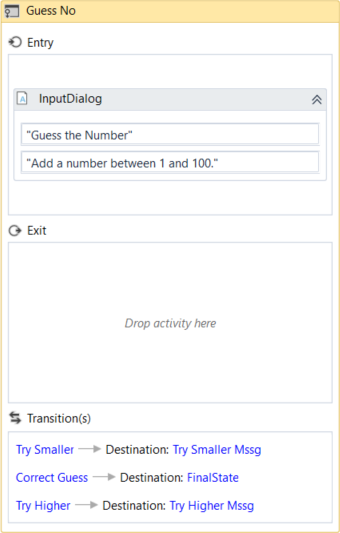
The State activity contains three sections, EntryExit and Transition(s), while the Final State only contains one section, Entry. Both of these activities can be expanded by double-clicking them, to view more information and edit them.

The Entry and Exit sections enable you to add entry and exit triggers for the selected state, while the Transition(s) section displays all the transitions linked to the selected state.
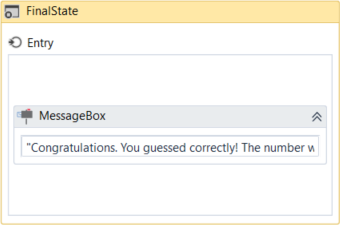
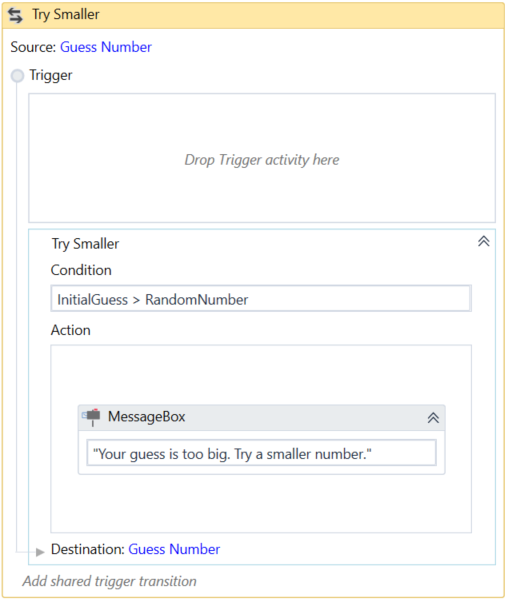
Transitions are expanded when you double-click them, just like the State activity. They contain three sections, TriggerCondition and Action, that enable you to add a trigger for the next state, or add a condition under which an activity or sequence is to be executed.
Example of How to Use a State Machine

To exemplify how to use a state machine, we are going to build the guessing game we did in the previous chapter, the only difference being that we will try to guess a number between 1 and 100.

  1. Create a blank process and, on the Design tab, in the File group, select New > State Machine. The New State Machine window is displayed.

Note:

You can also add a State Machine activity to the Designer panel to create a new state machine automation.

  1. In the Name field type a name for the automation, such as “First State Machine”, and leave the default project location or add a subfolder. Click Create. The Designer panel is updated accordingly.
  2. Create two integer variables, InitialGuess and RandomNumber. The first variable stores your guess, while the second stores the random number.
  3. Add a State activity to the Designer panel and connect it to the Start node. This is the initial state, and it is used to generate a random number.
  4. Double-click the activity. This State activity is displayed expanded in the Designer panel.
  5. In the Properties panel, in the DisplayName field, type Initializing Random Number. This enables you to easily tell states apart.
  6. In the Entry section, add an Assign activity.
  7. In the To field, add the RandomNumber variable.
  8. In the Value field, type new Random().Next(1,100). This expression generates a random number.
  9. Return to the main project view and add a new State activity.
  10. Connect it to the previously added activity.
  11. Double-click the last added State activity. This activity is displayed expanded in the Designer panel.
  12. In the Properties panel, in the DisplayName field, type Guess Number. This state is used to prompt the user to guess a number.
  13. In the Entry section, add an Input Dialog activity.
  14. Select the Input Dialog, and in the Properties panel, add an appropriate Label and Titleto prompt the user to guess a number between 1 and 100.
  15. In the Result field, add the InitialGuess variable. This variable stores the user’s guess.
  16. Return to the main project view and create a transition that points from the Guess Number state to itself.
  17. Double-click the transition. The transition is displayed expanded in the Designer panel.
  18. In the Properties panel, in the DisplayName field, type Try Smaller. This message is displayed on the arrow, enabling you to run through your automation easier.
  19. In the Condition section, type InitialGuess > RandomNumber. This verifies if the user’s guess is bigger than the random number.
  20. In the Action section, add a Message Box activity.
  21. In the Text field, type something similar to “Your guess is too big. Try a smaller number.” This message is displayed when the user’s guess is bigger than the random number.
  22. Return to the main project view and create a new transition that points from the Guess Number state to itself.
  23. Double-click the transition. The transition is displayed expanded in the Designer panel.
  24. In the Properties panel, in the DisplayName field, type “Try Bigger”. This message is displayed on the arrow, enabling you to run through your automation easier.
  25. In the Condition section, type InitialGuess < RandomNumber. This verifies if the guess is smaller than the random number.
  26. In the Action section, add a Message Box activity.
  27. In the Text field, type something similar to “Your guess is too small. Try a bigger number.” This message is displayed when the users guess is smaller than the random number.
  28. Return to main project view and add a Final State activity to the Designer panel.
  29. Connect a transition from the Guess Number activity to the Final State.
  30. In the Properties panel, in the DisplayName field, type “Correct Guess”.
  31. In the Condition field, type InitialGuess = RandomNumber. This is the condition on which this automation steps to the final state and end.
  32. Double-click the Final State activity. It is displayed expanded in the Designer panel.
  33. In the Entry section, add a Message Box activity.
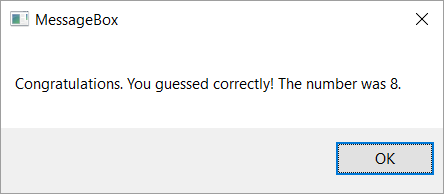
  34. In the Text field, type something similar to “Congratulations. You guessed correctly! The number was ” + RandomNumber.ToString + “.” This is the final message that is to be displayed, when the user correctly guesses the number.
    The final project should look as in the following screenshot.
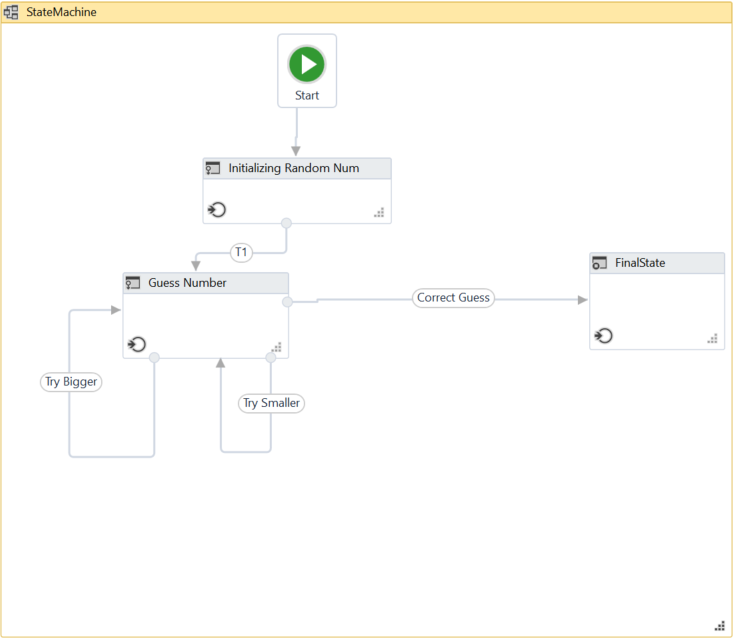
  1. Press F5. The automation is executed correctly.
Flowcharts with RPA

Example of a Flowchart

To exemplify the properties of a flowchart, we are going to build a guessing game that generates a random number from 1 to 999 that the user must guess. To create such an automation, do the following:

  1. Create a blank process and from the Design tab, in the File group, select New > Flowchart. The New Flowchart window is displayed.

Note:

You can also add a Flowchart activity to the Designer panel to create a new flowchart project.

  1. In the Name field type a name for the automation, such as “First Flowchart”, and leave the default project location or add a subfolder. Click Create. The Designer panel is updated accordingly.
  2. Create two Int32 variables (RandomNumberGuessNumber) and a String one (Message).
  3. Set the default value of the Message variable to “Guess a number from 1 to 999.” The RandomNumber stores a random number between 1 and 999, GuessNumber stores the user’s guess and Message stores the message that is going to be displayed to prompt the user.
  1. Add an Assign activity to the Designer panel, and connect it to the Start node.
  2. In the Properties panel, in the To field add the RandomNumber variable.
  3. In the Value field, type new Random().Next(1,999).

Note:

This field uses the Random() function to generate a random number between 1 and 999. For more information on variables, see Variables.

  1. Add an Input Dialog activity to the Designer panel and connect it to the Assign one.
  2. In the Properties panel, in the Label field, add the Message variable.
  3. In the Result field, add the GuessNumber variable. This activity asks and stores the user’s guesses in the GuessNumber variable.
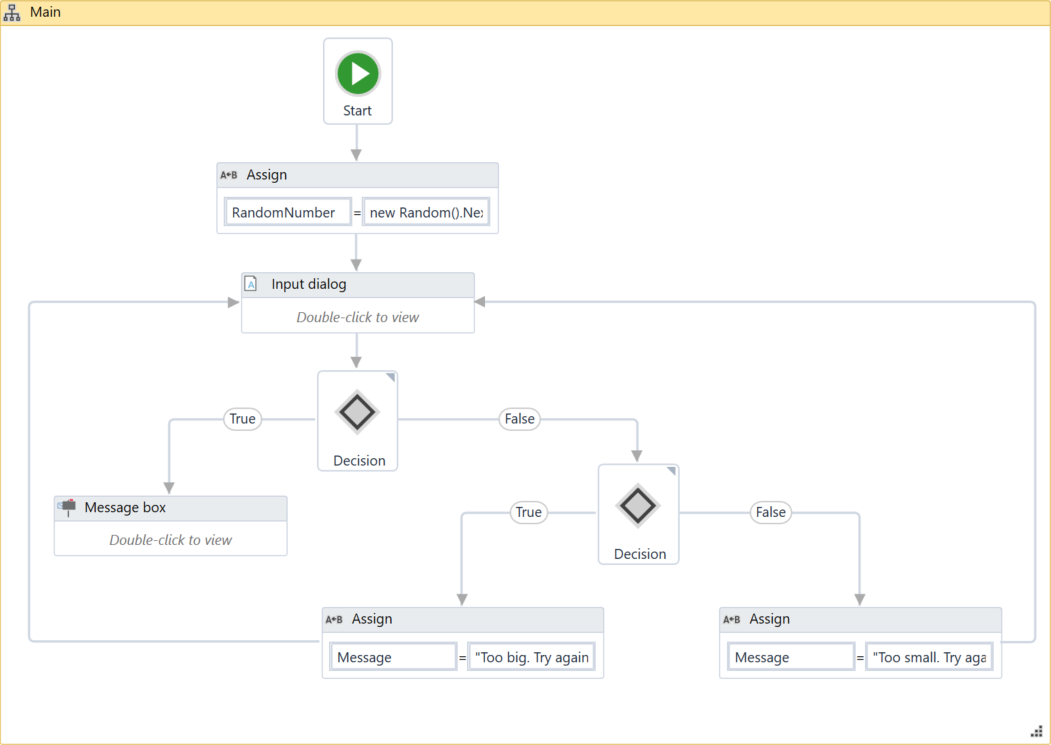
  4. Add a Flow Decision activity and connect it to the Input Dialog. This activity enables you to tell the user if he correctly guessed the number or not.
  5. In the Properties panel, in the Condition field, type GuessNumber = RandomNumber. This enables you to verify if the number added by the user is the same as the randomly-generated one.
  6. Add a Message Box activity and connect it to the True branch of the Flow Decision.
  7. In the Properties panel, in the Text field, type “Congratulations! You guessed correctly! The number was ” + RandomNumber.ToString + “.”. This is the message that is going to be displayed if the user correctly guessed the number.
  8. Add a new Flow Decision activity and connect it to the False branch of the previously added Flow Decision.
  9. In the Properties panel, in the Condition field, type GuessNumber > RandomNumber. This activity enables you to check if the number the user added is bigger than the randomly-generated one.
  10. In the DisplayName field, type Comparison. This enables you to easily to tell the difference between the two Flow Decisions used.
  11. Add an Assign activity and connect it to the True branch of the Comparison activity.
  12. In the To field, type the Message variable, and in the Value field, type a message indicating that the guess was too high, such as “Too big. Try again.”.
  13. Select the Assign activity and press Ctrl+C. The entire activity and its properties are copied to the Clipboard.
  14. Press Ctrl + V. A duplicate of the previous Assign activity is displayed.
  15. Connect it to the False branch of the Comparison activity and, in the Properties panel, in the Value field, type “Too small. Try again.”.
  16. Connect the Assign activities created at steps 18-22 to the Input Dialog. A loop is created, asking the user to type a smaller or bigger number, until he guesses correctly.
    The final project should look as in the screenshot below.

Example of a Sequence

Note: This sequence comes from the UiPath site and was designed by them. Please visit the site using the link in the work Sequence below.
  • Create a blank process and, on the Design tab, in the File group, select New > Sequence. The New Sequence window is displayed.

Note:

You can also add a Sequence activity to the Designer panel to create a new sequence, or simply drag an activity from the Activities panel and Studio automatically adds a parent sequence to it.

  1. In the Name field type a name for the automation, such as “First Sequence”, and leave the default project location or add a subfolder. Click Create. The Designer panel is updated accordingly.
  2. Create three String variables such as FirstNameLastName, and HairColor, so that you can store data from the user in them. Leave the Default field empty, to indicate that there is no default value.
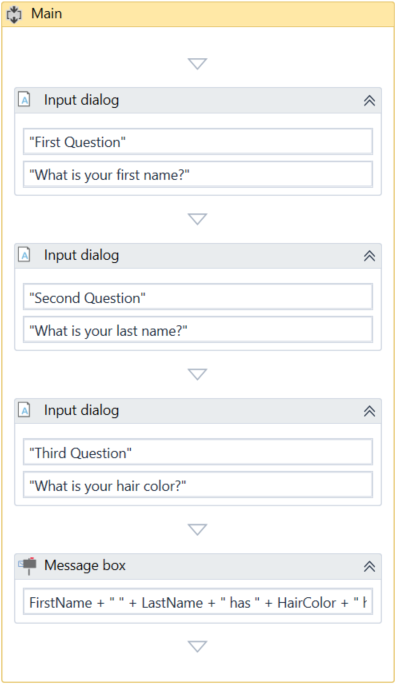
  1. Drag three Input Dialog activities to the Designer panel, one under the other.
  2. Select the first Input Dialog and, in the Properties panel, add a Label asking for the first name of the user, and a custom Title.
  3. In the Result field add the FirstName variable. This indicates that this variable is going to be updated with the value added by the user at this point.
  4. Repeat steps 6 – 7 for the second and third Input Dialog activities to ask the user for his last name and hair color, and store them in the LastName and HairColor variables.
  5. Add a Message Box activity under the third Input Dialog.
  6. Select the Message Box and, in the Properties panel, in the Text field, add the variables and a string to enable you to display all information gathered from the user, such as:
    FirstName + ” ” + LastName + ” has ” + HairColor + ” hair.”

Note:

Remember to add spaces between variables and within strings for an optimal output.

The final project should look as in the following screenshot.

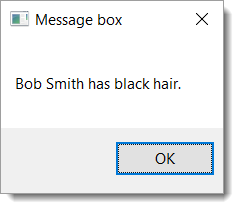
  1. On the Design tab, in the File group, click Run. The automation is executed. The final output message should look as in the following screenshot.

Create a guessing game

Create a process that allows a user to guess a number between 1 and 10. Start with the flowchart, then the simple process using loops and you may try the state machine method.

Flowchart method

  • In a new process drag the flowchart activity to the main stage.
  • Create three variables using the variables panel
    intGuessNumber set as int32
    intRandomNumber set as int32
    strMessage set as a string default text “Guess a number between 1 and 10.
  • Use the AB Assign activity and in the TO field use variable intRandomNumber and define as new Random ( ) .Next (1, 10)
  • Drag an Input Dialog activity. Use quotes for the label and title which state “Enter a number …” Make sure the result field is the variable intGuessNumber.
  • The flow decision will enable true or false choices. Define the condition as intGuessNumber = intRandomNumber.
  • Create a Message box and connect it to the true side of the flow decision. Enter the text “You have guessed correctly.”
  • Drag a second flow decision to the false side of the first decision and define the condition as
    intGuess >intRandomNumber.
  • Drag an AB Assign to the true branch and in the To enter strMessage and enter text “You guess was too large.”
  • Drag an AB Assign on the false branch and define To as strMessage with text “Your guess was too small.
  • Each of the AB assign need to have arrows up to the first Input dialog.
  • Run this process.

My entry into Robotic Process Automation

My journey into Robotic Process Automation (RPA) began on July19, 2019. As a contract for training I was working was nearing it’s end RPA was discussed with me by an Owner and Principal Project Manager I respected. This mentor shared so many facts with me and had my appetite whet to continue my journey. I won’t go to deep into that since this is really about presenting a list of lab examples for all to use to develop their knowledge and skills using RPA.

At the time that I entered this field UiPath has a free online university that provides users with the knowledge they need to become certified in several levels. I plan on taking this as far as I can and here are some of the resources I am using.

I may leave more articles I have read but right now I want to get to posting some lab examples of RPA programming.

Here are some sites I am using to learn RPA programming. The first is the UiPath Academy where getting certified is supported with free training. The second is Lynda.com on the Linkedin site. This collaboration gives me 30 days of access and I found three courses to learn and broaden my knowledge.

·       Robotic Process Automation : Tech Primer

·        The .NET framework

· UiPath Robotic Process Automation

Design a site like this with WordPress.com
Get started